> ## Documentation Index
> Fetch the complete documentation index at: https://docs.salesvoicesai.com/llms.txt
> Use this file to discover all available pages before exploring further.
# User Limits Management
> Configure individual user limits and restrictions for your white label platform users
Manage individual user limits and restrictions beyond the default plan limits. This allows you to customize specific users' access without changing their plan.
## Overview
User limits provide granular control over individual users on your white label platform. You can override plan limits for specific users, giving them more or less access than their plan normally allows.
## Available Limit Types
### Count Limits
**Numerical restrictions on resource usage:**
**Purpose:** Maximum number of AI assistants user can create
**Your Custom Plans:**
* Free: 1 assistant (recommended)
* Basic: 2-3 assistants
* Professional: 5-10 assistants
* Enterprise: Unlimited
**Purpose:** Maximum number of outbound campaigns
**Your Custom Plans:**
* Free: 1 campaign (trial)
* Basic: 2-3 campaigns
* Professional: 5-15 campaigns
* Enterprise: Unlimited
**Purpose:** Maximum number of custom voice clones
**Your Custom Plans:**
* Free: 0-1 voice (premium incentive)
* Basic: 2-3 voices
* Professional: 5-10 voices
* Enterprise: Unlimited
**Purpose:** Maximum simultaneous calls
**Your Custom Plans:**
* Free: 1-2 calls (prevent abuse)
* Basic: 5-10 calls
* Professional: 20-100 calls
* Enterprise: 500+ calls
**Purpose:** Maximum number of knowledge bases
**Your Custom Plans:**
* Free: 1 knowledge base
* Basic: 2-5 knowledge bases
* Professional: 10-20 knowledge bases
* Enterprise: Unlimited
**Purpose:** Maximum phone numbers user can add (SIP/Caller ID)
**Your Custom Plans:**
* Free: 1 number
* Basic: 2-3 numbers
* Professional: 5-15 numbers
* Enterprise: Unlimited
**Purpose:** Maximum custom mid-call tools
**Your Custom Plans:**
* Free: 0 tools (premium feature)
* Basic: 1-2 tools
* Professional: 5-10 tools
* Enterprise: Unlimited
**Purpose:** Monthly automation platform executions
**Your Custom Plans:**
* Free: 100-500 runs
* Basic: 1,000-5,000 runs
* Professional: 10,000-50,000 runs
* Enterprise: Unlimited
### Boolean Limits
**Feature access controls (enabled/disabled):**
**Purpose:** Access to embeddable web widget functionality
**Default:** Enabled for all plans
**Purpose:** Access to multi-language assistant support
**Default:** Enabled for all plans
**Purpose:** Access to no-code automation workflows
**Default:** Enabled for all plans
**Purpose:** Access to Cal.com and GoHighLevel scheduling
**Default:** Enabled for all plans
## Setting User Limits
### Accessing Individual User Limits
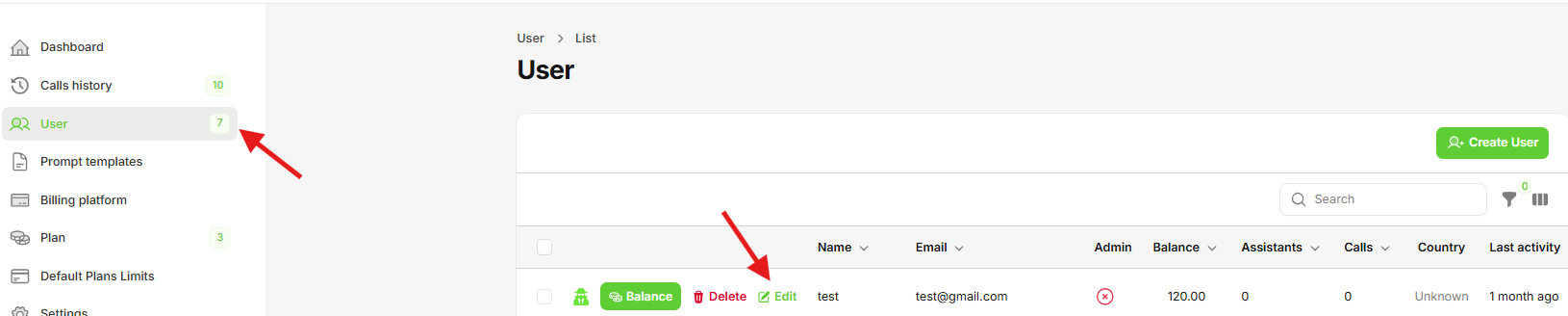 **Steps to modify individual user limits:**
1. **Go to "Users" table** in your administration panel
2. **Click "Edit" button** on any user row to open their profile
### Enable Custom Limits
**Steps to modify individual user limits:**
1. **Go to "Users" table** in your administration panel
2. **Click "Edit" button** on any user row to open their profile
### Enable Custom Limits
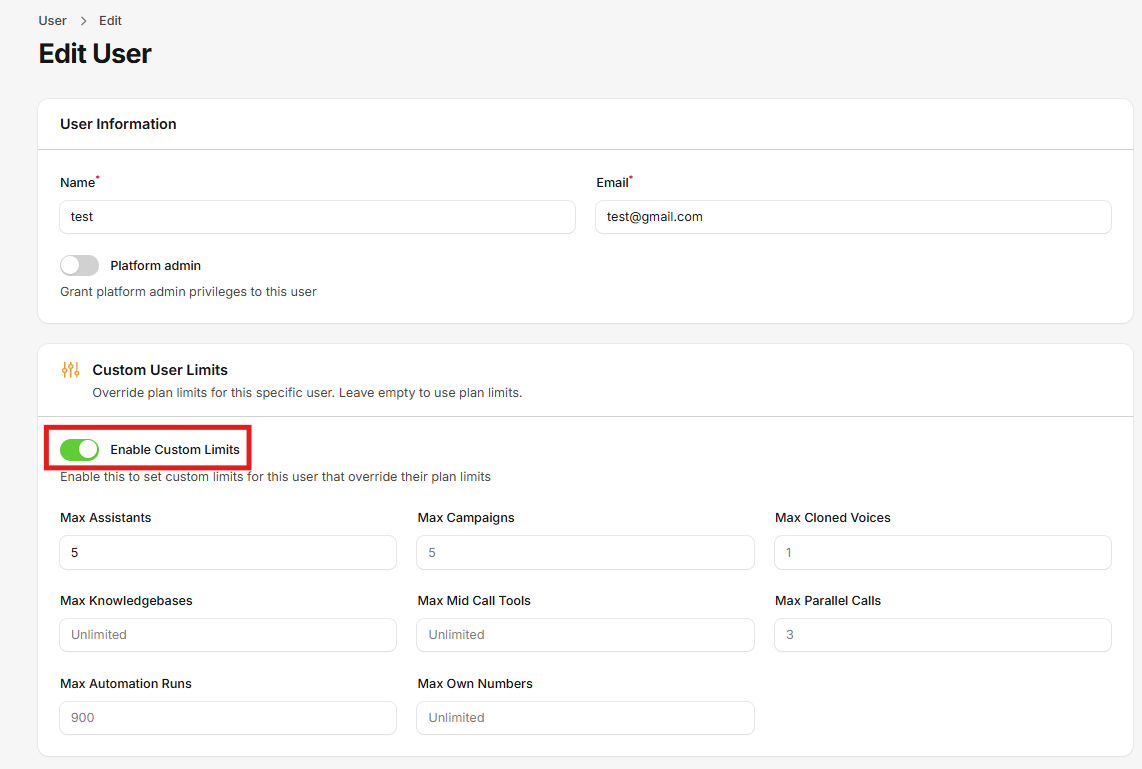 3. **Enable "Custom Limits"** to override plan defaults
4. **Modify any limit** as needed for that specific user
### Configuring Limits
**For Count Limits:**
* **-1:** Unlimited access
* **0:** No access/disabled
* **Positive number:** Specific limit
**For Boolean Limits:**
* **Enabled:** User has access to feature
* **Disabled:** User cannot access feature
**Additional User Management:**
* **Change user email and name**
* **Grant admin access**
### Transfer Credits
3. **Enable "Custom Limits"** to override plan defaults
4. **Modify any limit** as needed for that specific user
### Configuring Limits
**For Count Limits:**
* **-1:** Unlimited access
* **0:** No access/disabled
* **Positive number:** Specific limit
**For Boolean Limits:**
* **Enabled:** User has access to feature
* **Disabled:** User cannot access feature
**Additional User Management:**
* **Change user email and name**
* **Grant admin access**
### Transfer Credits
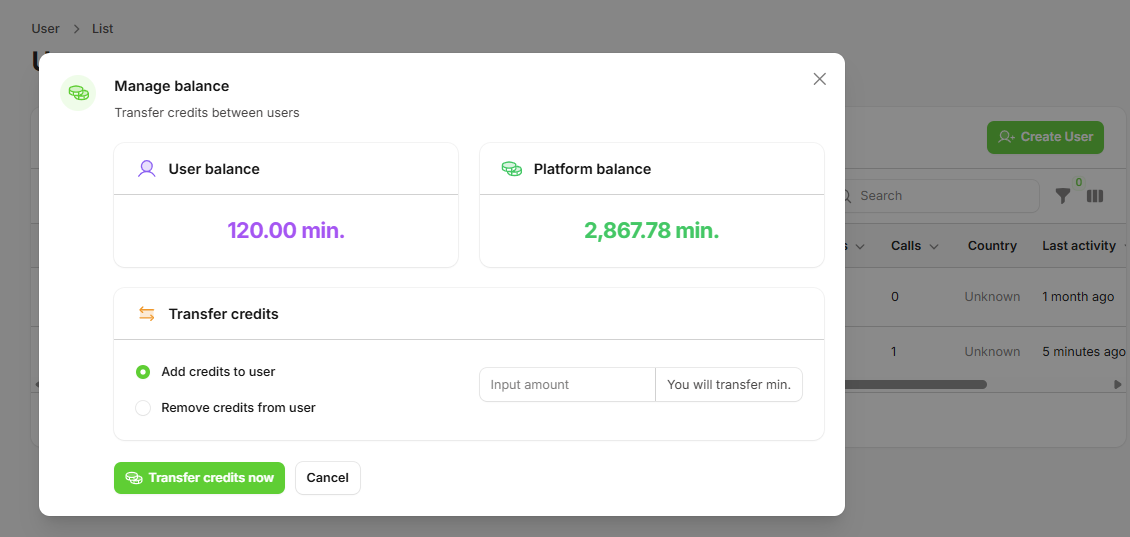 **Credit Management:**
* **Transfer credits** from your white label account to user accounts
* **Add or remove credits** from individual user balances
* **Monitor usage** and top up accounts as needed
**Additional User Management:**
* **Impersonate user** to make settings on their behalf
**Quick Access:** Click directly on any user row in the Users table to instantly open their profile and access limit configuration.
## Troubleshooting
### Common Issues
**User can't create resources:**
* Check current vs. limit usage
* Verify limit type (count vs. boolean)
* Confirm user is on correct plan
**Limits not applying:**
* Clear platform cache
* Verify limit configuration
* Check for conflicting settings
**Resource Impact:** Unlimited settings (-1) should be used carefully as they can impact platform performance and costs.
User limits override plan limits. A user's effective limit is always the user limit if set, otherwise the plan limit applies.
**Credit Management:**
* **Transfer credits** from your white label account to user accounts
* **Add or remove credits** from individual user balances
* **Monitor usage** and top up accounts as needed
**Additional User Management:**
* **Impersonate user** to make settings on their behalf
**Quick Access:** Click directly on any user row in the Users table to instantly open their profile and access limit configuration.
## Troubleshooting
### Common Issues
**User can't create resources:**
* Check current vs. limit usage
* Verify limit type (count vs. boolean)
* Confirm user is on correct plan
**Limits not applying:**
* Clear platform cache
* Verify limit configuration
* Check for conflicting settings
**Resource Impact:** Unlimited settings (-1) should be used carefully as they can impact platform performance and costs.
User limits override plan limits. A user's effective limit is always the user limit if set, otherwise the plan limit applies.